Unlock your gaming PC's true potential by learning how to benchmark it effectively. This comprehensive guide is designed for busy US gamers, averaging 36 years old, who balance work, family, and a passion for gaming. Discover the essential tools and steps to accurately measure your system's performance, identify bottlenecks, and make smart upgrade decisions without breaking the bank. Understand your frame rates, temperatures, and component capabilities to ensure your precious gaming hours are spent enjoying seamless, high-performance gameplay. Whether you're looking to optimize current setups, plan future hardware purchases, or simply ensure your rig is running at its peak, mastering PC benchmarking is a game-changer. Elevate your gaming experience and make every session count.
What is the primary benefit of benchmarking my gaming PC?
The primary benefit of benchmarking your gaming PC is gaining objective data on its performance, allowing you to accurately identify bottlenecks, verify hardware functionality after upgrades, and make informed decisions about future optimizations or purchases. It removes guesswork, ensuring you get the most out of your system for your valuable gaming time.
How often should I run benchmarks on my gaming system?
You should run benchmarks on your gaming system after a new build or major component upgrade, when troubleshooting performance issues, and periodically every 6 to 12 months for a general health check. Also, it's wise to run them before and after significant driver updates to track performance changes.
What are the essential tools for benchmarking a gaming PC?
Essential tools for benchmarking a gaming PC include synthetic benchmarks like 3DMark (for GPU), Cinebench (for CPU), and CrystalDiskMark (for storage). Many modern games also feature built-in benchmarks. Additionally, monitoring software like HWMonitor or MSI Afterburner is crucial for tracking temperatures and component usage during tests.
How do I prepare my gaming PC to get the most accurate benchmark results?
To ensure accurate benchmark results, first close all background applications, update your graphics and chipset drivers, and restart your PC. Set your Windows power plan to 'High Performance' and disable any in-game overlays. Monitoring temperatures is also vital to prevent thermal throttling from skewing results.
What key metrics should I focus on when reviewing benchmark data?
When reviewing benchmark data, focus on Frames Per Second (FPS), especially average, 1% low, and 0.1% low figures for smooth gameplay indicators. Also, pay close attention to CPU and GPU temperatures, clock speeds, and utilization percentages to identify potential bottlenecks or thermal issues within your system.
Can benchmarking help me decide if I need a new graphics card or CPU?
Yes, benchmarking is excellent for this. By running tests that stress individual components and monitoring CPU and GPU usage, you can determine if your CPU is holding back your GPU (CPU bottleneck) or vice versa. This data directly informs whether a new graphics card or CPU would provide the most significant performance boost for your budget.
Is it safe to push my PC to its limits with benchmarking software?
It is generally safe to push your PC to its limits with reputable benchmarking software. These tools are designed for stability testing and performance measurement. However, ensure your PC has adequate cooling to prevent components from overheating, and always monitor temperatures during testing to avoid potential thermal throttling or instability issues.
Hey fellow gamers! Ever feel like your gaming rig isn't quite living up to its potential? You've got a solid setup, but maybe frame rates dip in critical moments, or new titles just don't feel as smooth as they should. You're not alone. Many of us, especially those balancing jobs, families, and life's demands, carve out precious hours for gaming to unwind, connect with friends, or simply build skills. With 87% of US gamers regularly logging in, often more than 10 hours a week, ensuring those moments are high-performance and hassle-free is crucial. We value relaxation, fun, and getting the most bang for our buck, not frustrating technical issues.
You might be wondering if it's time for an upgrade or if there's a setting you've missed. That's where PC benchmarking comes in. It's not just for tech enthusiasts; it's a vital tool for any gamer who wants to understand their system's true capabilities, identify what's holding it back, and make smart, budget-friendly decisions. Think of it as a comprehensive health check for your gaming machine, giving you objective data instead of relying on gut feelings. This guide will walk you through everything you need to know about how to benchmark gaming pc, empowering you to optimize your experience, troubleshoot issues, and ensure every gaming session is as epic as it should be.
We'll cut through the jargon, provide practical steps, and help you interpret the results so you can get back to what matters most: enjoying your games, whether it's diving into a social cozy game with friends, climbing ranks in your favorite esports title, or exploring the latest VR experiment. Let's get started on unlocking your PC's peak performance!
Why Should I Benchmark My Gaming PC?
Benchmarking your gaming PC is more than just a tech enthusiast's hobby; it's a practical step for every gamer. It provides objective data on your system's performance, helping you understand exactly what your components are capable of. This is especially important for us gamers who have limited time and want to ensure our rigs deliver maximum enjoyment. Knowing your PC's baseline allows you to identify performance bottlenecks, gauge the impact of system changes or driver updates, and make informed decisions on potential upgrades without overspending. It's about optimizing your investment and ensuring smooth gameplay.
What Exactly is PC Benchmarking?
PC benchmarking is the process of running standardized tests on your computer hardware to measure its performance. These tests simulate real-world workloads, often intensive gaming scenarios, and then provide a score or metric (like frames per second, temperature, or processing speed) that quantifies your system's capabilities. Unlike just playing a game and 'feeling' if it's running well, benchmarks offer consistent, repeatable results that can be compared against other systems or your own system over time. This scientific approach helps you objectively assess your CPU, GPU, RAM, and storage.
When is the Best Time to Benchmark My System?
There are several key times when benchmarking your gaming PC becomes invaluable. Firstly, right after building a new PC or performing a major hardware upgrade (like a new GPU or CPU) is ideal to verify everything is working as expected and to establish a baseline. Secondly, before and after making significant software changes, such as a Windows update, a new driver installation, or even a fresh game install, can show you the impact. Thirdly, if you're experiencing unexpected performance drops or stuttering in games, benchmarking can help pinpoint the problematic component. Lastly, if you're planning an upgrade, running benchmarks helps you understand where your current system is weakest, guiding your budget-friendly upgrade choices effectively.
What Tools Do I Need to Benchmark My Gaming PC?
Choosing the right tools is crucial for accurate benchmarking. You'll want a mix of synthetic benchmarks and real-world game benchmarks. Here are some popular, reliable options that are generally free or have free trials:
- GPU Benchmarks:
- 3DMark (Time Spy / Fire Strike): Industry standard for graphics cards, offering comprehensive tests for DirectX 11 and DirectX 12 performance.
- Unigine Heaven / Valley / Superposition: Excellent for pushing GPUs, known for their stunning visuals and demanding workloads.
- CPU Benchmarks:
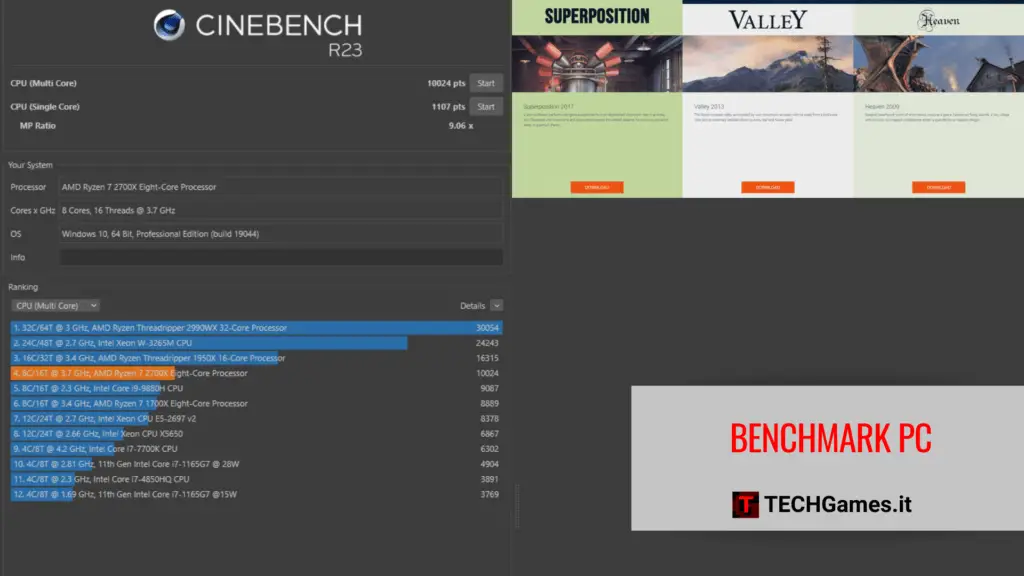
- Cinebench R23: Measures CPU rendering performance, giving you a good indicator of multi-core and single-core processing power.
- PassMark PerformanceTest: Provides a suite of tests for CPU, GPU, RAM, disk, and 2D/3D graphics, offering an overall system score.
- Storage Benchmarks:
- CrystalDiskMark: Measures your SSD or HDD read/write speeds, essential for game load times and system responsiveness.
- Overall System Monitors:
- HWMonitor / MSI Afterburner (with RivaTuner Statistics Server): Not benchmarks themselves, but critical for monitoring temperatures, clock speeds, and usage during tests, giving context to your benchmark scores.
For real-world testing, many popular games like Cyberpunk 2077, Assassin's Creed Valhalla, Red Dead Redemption 2, and the recently popular Helldivers 2, often include built-in benchmark tools in their graphics settings. These are fantastic for understanding actual in-game performance.
How Do I Prepare My PC for Accurate Benchmarking?
To ensure your benchmark results are consistent and accurate, proper preparation is key. Think of it like clearing the track before a race. Follow these steps:
- Close All Background Applications: Shut down anything unnecessary – web browsers, Discord, streaming apps, torrent clients, antivirus scans, etc. These can consume CPU, RAM, or GPU resources and skew your results.
- Update Drivers: Ensure your graphics card drivers (NVIDIA GeForce Experience or AMD Adrenalin), chipset drivers, and Windows are all up to date. Outdated drivers can lead to suboptimal performance.
- Restart Your PC: A fresh restart clears RAM and ends any lingering processes, giving your system a clean slate.
- Monitor Temperatures: Use a tool like HWMonitor to keep an eye on your CPU and GPU temperatures before and during benchmarks. Overheating can cause throttling and inaccurate low scores.
- Disable Overlays: In-game overlays from Steam, Epic Games, NVIDIA GeForce Experience, or AMD Adrenalin can sometimes interfere with benchmark processes or subtly impact performance. Disable them temporarily.
- Set Power Plan to High Performance: In Windows Power Options, select 'High performance' to ensure your CPU and other components aren't being held back by power saving features.
These steps help create a controlled environment, making your benchmark scores truly reflective of your hardware's capabilities.
What are the Key Metrics to Look for in Benchmark Results?
When you get your benchmark results, it's a flurry of numbers. Focus on these key metrics to understand your system's performance:
- Frames Per Second (FPS): This is perhaps the most important for gamers. It indicates how many frames your GPU can render per second. Higher FPS means smoother gameplay. Look for average FPS, 1% low, and 0.1% low figures. The 'lows' are crucial as they show dips that cause stuttering.
- Scores (e.g., 3DMark Score, Cinebench Score): These are proprietary scores generated by synthetic benchmarks. They're useful for direct comparison with other systems on leaderboards or tracking your own system's improvement over time.
- Temperatures (CPU & GPU): High temperatures (especially above 85°C for GPU or 90°C for CPU) indicate potential cooling issues or thermal throttling, which means your components are slowing down to prevent damage.
- Clock Speeds (CPU & GPU): Monitor if your components are consistently reaching their advertised boost clocks during benchmarks. Drops can indicate power limits or thermal issues.
- CPU/GPU Usage: During a GPU-intensive benchmark, your GPU usage should be consistently near 99-100%. If it's much lower while your CPU usage is high, you might be CPU bottlenecked. Conversely, during a CPU-intensive test, CPU usage should be high.
How Do I Interpret My Benchmark Scores and What Do They Mean?
Interpreting scores involves comparing them to known baselines and understanding what they signify for your gaming experience. Here's a quick guide:
Comparing to Averages: Many benchmarking tools provide online databases where you can compare your scores to those of identical or similar hardware configurations. If your scores are significantly lower than average for your components, it suggests a problem – perhaps thermal throttling, outdated drivers, or background processes. If your scores are close to or above average, your system is performing as expected.
Understanding FPS for Gameplay:
- 30 FPS: Barely playable, often found on consoles in performance modes.
- 60 FPS: The sweet spot for smooth gameplay, especially on 60Hz monitors. Most competitive gamers aim for this minimum.
- 120+ FPS: Essential for high-refresh-rate monitors (144Hz, 240Hz, etc.) and gives a significant competitive advantage in fast-paced games.
Identifying Bottlenecks: If your GPU usage consistently hovers around 60-70% during a demanding game benchmark while your CPU usage is at 90-100%, your CPU is likely a bottleneck, holding back your powerful GPU. If your GPU is at 99% and your CPU is relatively low, your GPU is the limiting factor. This insight is crucial for prioritizing future upgrades; you don't want to buy an expensive GPU if your CPU is the real problem.
Can Benchmarking Help Me Troubleshoot Performance Issues?
Absolutely! Benchmarking is a powerful diagnostic tool. If you're experiencing stuttering, low frame rates, or frequent crashes, running a benchmark can help isolate the problem. For example:
- If a GPU benchmark crashes or produces extremely low scores, it might indicate a driver issue, a faulty GPU, or inadequate power supply.
- If your CPU scores are consistently low, check your CPU temperatures. High temps suggest poor cooling (bad thermal paste, insufficient cooler) leading to thermal throttling.
- If CrystalDiskMark shows slow speeds for your SSD, it could mean it's nearly full, has a faulty cable, or is reaching end-of-life, impacting game load times and overall system responsiveness.
By comparing specific component scores and monitoring real-time metrics during tests, you can narrow down the potential culprits much faster than trial and error.
How Often Should I Benchmark My Gaming PC?
For most busy gamers, you don't need to benchmark weekly. A good rhythm is to benchmark your PC:
- After a new build or major hardware upgrade: Establish a fresh baseline.
- Every 6-12 months: A routine check-up to ensure everything is still performing optimally and to catch any gradual degradation.
- Before and after significant driver updates: Especially for graphics drivers, to see if there's a performance uplift or an unexpected dip.
- When troubleshooting a performance problem: Use it as a diagnostic tool.
- Before buying a new game: Especially if it's graphically demanding, to confirm your system meets or exceeds recommended specs, helping you avoid buyer's remorse for a game you can't smoothly run.
What's the Best Way to Compare My Scores with Others?
Comparing your benchmark scores is part of the fun and crucial for understanding where your rig stands. Most popular benchmarking tools like 3DMark, Cinebench, and PassMark have online leaderboards or result submission platforms. You can upload your scores and see how they stack up against thousands of other users with similar (or identical) hardware. This is a great way to confirm your system is performing as expected, or to identify if you're underperforming and need to investigate further. You can also join online gaming communities, forums, or Discord servers dedicated to PC hardware. Sharing your scores there can get you valuable feedback and insights from experienced enthusiasts, often helping you fine-tune your settings for better results.
How Can I Improve My PC's Performance After Benchmarking?
Once you've benchmarked and identified areas for improvement, here are some actionable steps to boost your gaming PC's performance without necessarily buying new hardware immediately:
- Update Drivers: Always the first step. Graphics card drivers, chipset drivers, and even sound drivers can impact performance.
- Optimize In-Game Settings: Lowering settings like Anti-Aliasing, shadows, volumetric fog, or texture quality can significantly boost FPS. Experiment to find your sweet spot between visuals and performance.
- Clean Up Your PC: Remove unnecessary programs, clear temporary files, and defragment HDDs (SSDs don't need defragmentation, but ensure TRIM is enabled).
- Manage Background Processes: Use Task Manager to identify and close resource-intensive applications running in the background while gaming.
- Overclocking (Carefully!): If you're comfortable and have adequate cooling, a modest overclock of your CPU or GPU can yield noticeable performance gains. Research thoroughly and proceed with caution.
- Upgrade Components: If benchmarking consistently points to a bottleneck (e.g., an old CPU holding back a new GPU), then a targeted upgrade is the most effective solution. Prioritize components that are limiting your experience the most.
- Improve Cooling: If thermal throttling is an issue, upgrading your CPU cooler, adding case fans, or even reapplying thermal paste can drastically improve performance consistency.
Remember, the goal is balanced performance that makes your limited gaming time more enjoyable. This month's trends, like the increasing demand for seamless cross-play experiences and the rise of visually stunning free-to-play titles, make optimizing your current rig more important than ever.
Conclusion
Benchmarking your gaming PC might seem like an extra step, but for busy gamers like us, it's an investment in better, more enjoyable playtime. By understanding your system's strengths and weaknesses, you're empowered to make smart choices, troubleshoot problems efficiently, and ensure your rig is always ready for the next adventure. From optimizing settings for the latest esports spectacle to ensuring a cozy co-op experience runs flawlessly, your benchmark scores are your guide. Take control of your gaming experience and maximize every precious moment.
What's your biggest gaming challenge when it comes to PC performance? Comment below!
FAQ Section
Q: Is benchmarking bad for my PC?
A: No, benchmarking is generally safe and not bad for your PC. It pushes your components to their limits, which is what they're designed for during intense gaming. Just ensure your cooling is adequate to prevent overheating, and always monitor temperatures during tests.Q: How accurate are benchmark scores?
A: Benchmark scores are highly accurate for measuring raw performance under controlled conditions. However, real-world game performance can vary slightly due to game optimization, driver versions, and background processes. They provide an excellent comparative baseline.Q: What is a 'good' benchmark score?
A: A 'good' benchmark score is relative to your specific hardware configuration. Generally, a score is good if it's consistent with or slightly above the average scores for your identical components online. For FPS, 60+ FPS at your desired resolution and settings is often considered good for smooth gameplay.Q: Can I benchmark my laptop gaming PC?
A: Yes, absolutely! Benchmarking gaming laptops is just as important as desktop PCs. Pay extra attention to temperatures, as laptop cooling solutions can be less robust. Use the same tools and preparation steps. It's crucial for understanding how throttling might affect performance.Q: What's the difference between synthetic and in-game benchmarks?
A: Synthetic benchmarks (like 3DMark) create artificial, highly controlled workloads to stress specific components and provide a quantifiable score. In-game benchmarks use actual game engines and assets to simulate real-world gameplay performance, giving you a more direct idea of FPS in a specific title. Both are valuable.Q: My benchmark scores are low, what should I do first?
A: First, double-check all your drivers are updated and close all background applications. Then, monitor your CPU and GPU temperatures during the benchmark. High temperatures are a common cause of low scores due to thermal throttling. If temps are fine, investigate individual component usage to identify bottlenecks.Understand PC benchmarking, Choose the right benchmarking tools, Prepare your PC for accurate results, Interpret benchmark scores, Identify performance bottlenecks, Make informed upgrade decisions, Optimize your gaming experience, Troubleshoot performance issues.
35#1 Gallery how to benchmark gaming pc

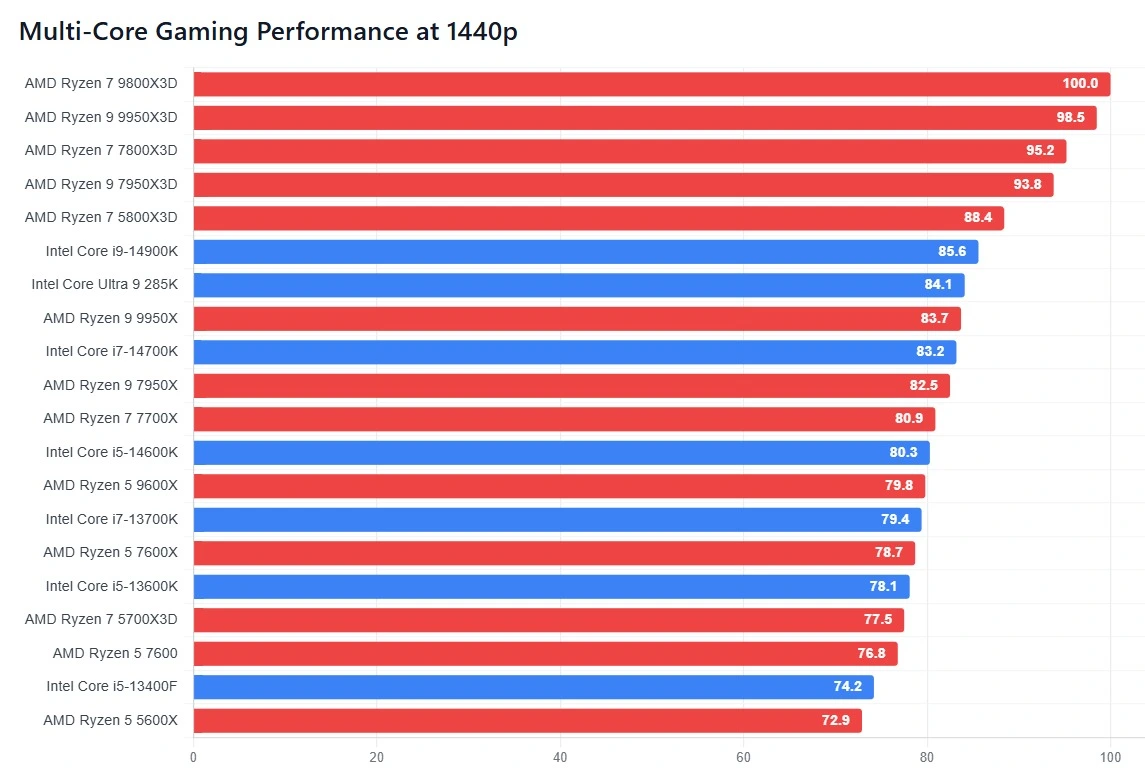
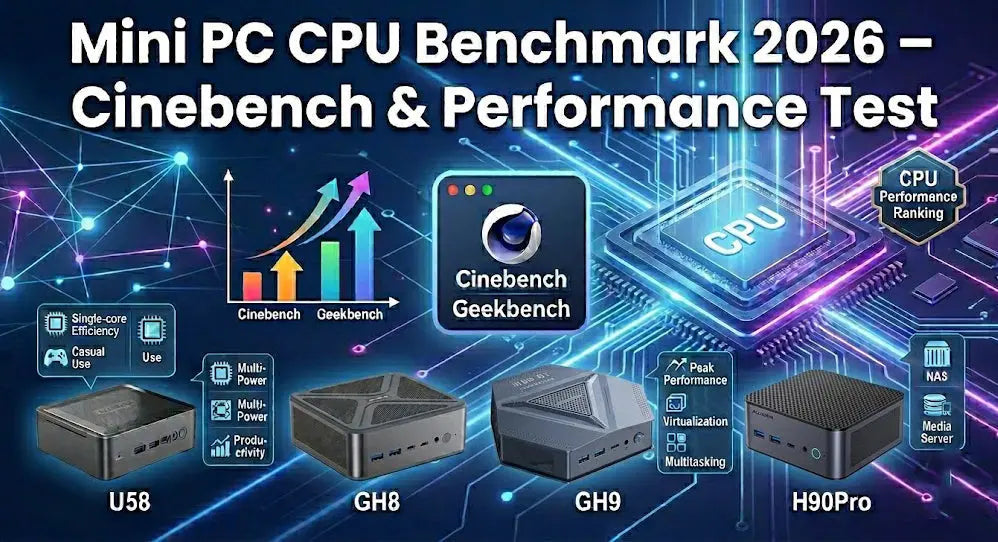

How To Benchmark Your New PC For Maximum Performance In 2026 Tech How To Benchmark New Pc Maximum Performance . Best Gaming PC Builds For 2026 Best Gaming PC Builds For 2026.webp. Updated CPU Benchmarks 2026 Ranked CPU Comparison Multi Core Cpu Gaming Benchmarks 1440p.webp. Mini PC CPU Benchmark 2026 Cinebench Geekbench Performance Mini PC CPU Benchmark 908d1a1e B966 4d00 B0f0 . How To Build A Gaming Pc In 2026 Tagalog RTX 3070 Ryzen 5 5600X3D Hqdefault
#2 Gallery how to benchmark gaming pc

How To Optimize Your Gaming PC For 2026 Way Of The Dogg What Is The Fastest Way To Optimize A Gaming PC In 2026 300x163 . How Much To Build A Gaming PC 2026 Complete Cost Guide Photo. DDR5 RAM Timing Tuning For Gaming PCs In 2026 Fix My PC Store Blog Ai Ddr5 Ram Timing Tuning For Gaming Pcs In 2026 Featured . How To Build A Gaming PC In 2026 Complete Parts Guide And Assembly Image. How To Build A Gaming PC In 2026 A Complete Step By Step Guide
#3 Gallery how to benchmark gaming pc

Top Rated PC Games Of 2026 The Must Plays And Their GPU Image. How To Choose A Gaming Monitor In 2026 Resolution Refresh Rate How To Choose Gaming Monitor 2026 . Best Budget Gaming PC 2026 Ryzen 5 5600 DDR4 Value Geeky Gadgets 0p Gaming Benchmarks Budget Rig . How To Benchmark Your Gaming PC 2025 MSI Afterburner Riva Statistic . 2026 Mobile PC Gaming Benchmarks InvestGame Net 2026 01 27 2026 Mobile Pc Benchmarks Compressed 1
#4 Gallery how to benchmark gaming pc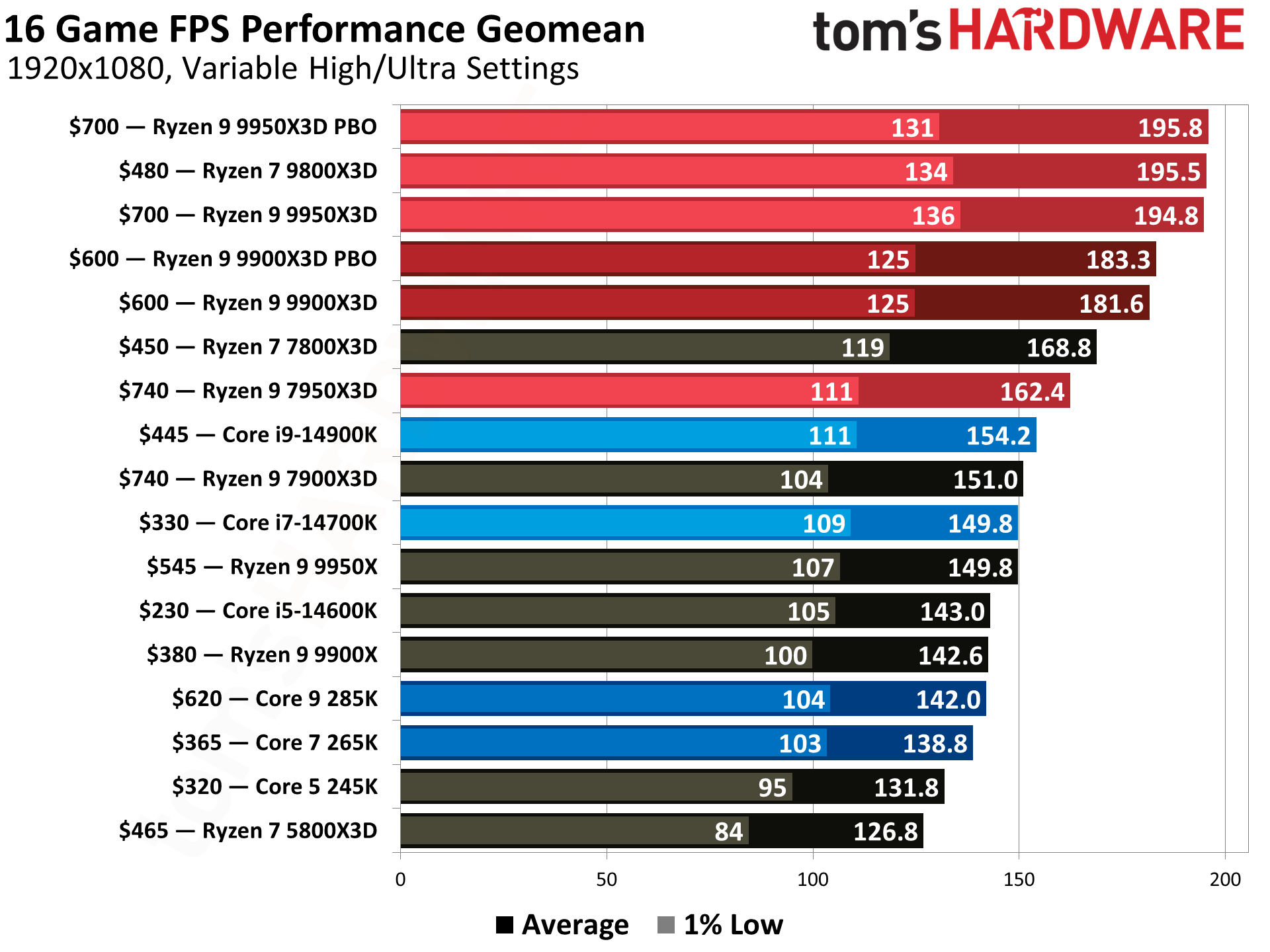
Grab This Awesome 4K Ready Gaming PC With A 7800X3D And RX 9070 XT For . How To Benchmark Your PC CPU GPU And Disk Tests Ai Benchmark Pc.webp. BEST FREE GPU Benchmark Software For PC TESTED 2026 Best Free Gpu Benchmark Cover . Pc Games Benchmark Test Pc Performance HYRIL . Best Graphics Card 2026 Comparison Ranking And Buying Guide For PC Gpu Performance Scores Clean Vertical
#5 Gallery how to benchmark gaming pc
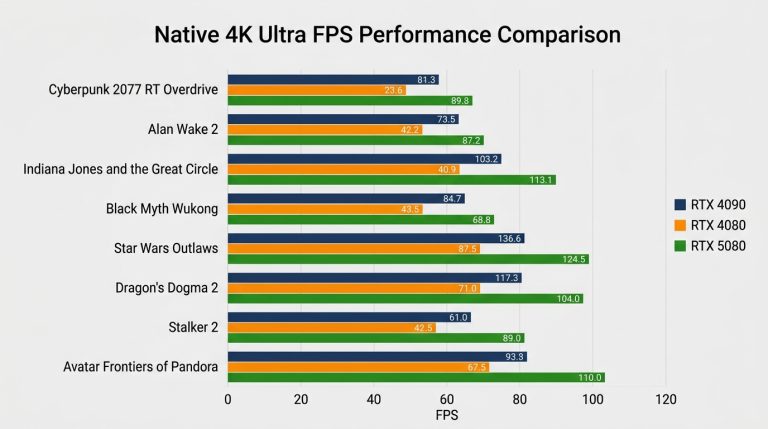


Cyberpunk 2077 Mac Benchmarks Show Most Apple Silicon Can Run The Game . PC Vs Console In 2026 Is PC Gaming Worth It SunbeamTech Demanding Pc Games Fps Benchmark 4k Ultra 768x429 . How To Benchmark Your Gaming PC Update 2026 How To Benchmark Your Gaming PC . Doom Eternal Im Test Gpu Sowie Cpu Benchmarks Und Frametimes EJXFFI Amd Radeon Rx 9070 Review Doom Eternal Ultra Nightmare 1440p Benchmark Results Graph . Backrooms 2026 Evolve
#6 Gallery how to benchmark gaming pc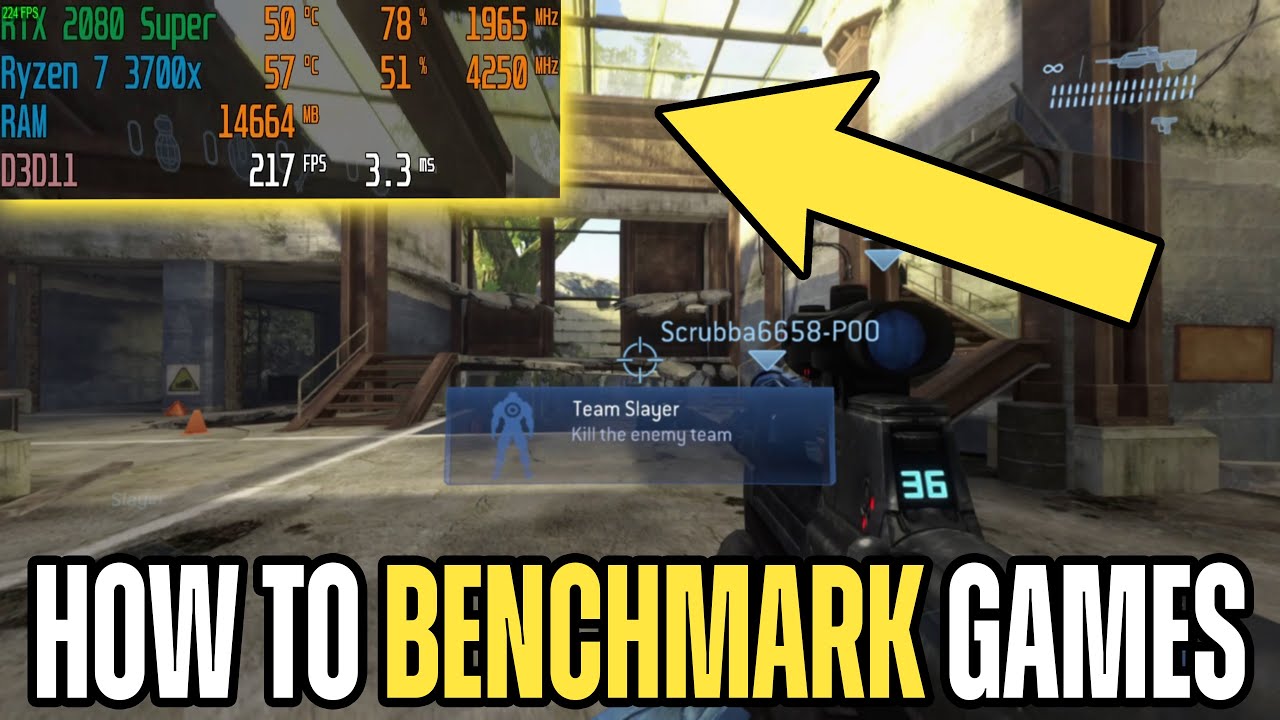

How To Benchmark YOUR Gaming PC 2026 MSI Afterburner Riva Tuner . Building An AWESOME 4K Gaming PC 2026 Full Build Guide W . How To Benchmark Gaming PC How To Benchmark Gaming PC 1068x580 . Graphic Card Benchmark NVIDIA GeForce RTX 3080 Graphics Card Benchmarks Game Performance Tests 3DMark 1 . Updated GPU Benchmarks 2026 Performance Buying Guide Cpu Benchmarks 2026.webp
#7 Gallery how to benchmark gaming pc


Best Game Benchmark Software 2026 Expert Picks Image. Best CPUs Of 2024 Intel Vs AMD Gaming Production Budget Vlcsnap 2024 11 21 .webp. Benchmark PC Gaming 2026 Migliori Programmi TECHGames Copertina Benchmark PC TECHGames 1024x576 . The 12 Best PC Benchmark Software In 2026 Top Selective PC BENCHMARK SOFTWARE . Battlefield 6 Benchmarks Show Nvidia GPUs On Top With DLSS 4 Looking Intel At CES 2026 Panther Lake Laptop Gaming