Ever wished you could perfectly capture that epic Roblox moment, a hilarious avatar pose, or a crucial game detail? As busy US gamers who juggle work, family, and a passion for virtual worlds, we know every second counts. Whether you're sharing triumphs with friends on Discord, documenting a bug, or just preserving a cherished memory, knowing how to take screenshots in Roblox efficiently is a game-changer. This comprehensive guide is designed for adult gamers like you, those who value practical, no-nonsense solutions. We'll dive into the simplest methods, from in-game tools to operating system features and mobile tricks, ensuring you can quickly snap and save your Roblox experiences without interrupting your flow. No more fumbling with complex commands or missing that perfect shot. Get ready to elevate your Roblox sharing game, making the most of your valuable gaming time.
How do I take a basic screenshot in Roblox on PC?
The simplest way on a PC is to press the 'Print Screen' (PrtScn) key. This copies your entire screen to the clipboard. Then, you can open a program like Paint or Discord, and paste the image there to save or share it. For an automatic save, try 'Windows Key + PrtScn', which saves the image directly to your Pictures\Screenshots folder.
Where are Roblox screenshots saved by default?
If you use Roblox's in-game camera tool, screenshots are typically saved in your user's Pictures folder, within a 'Roblox' subfolder (e.g., C:\Users\YourUsername\Pictures\Roblox). For screenshots taken with 'Windows Key + PrtScn', they go into your 'Pictures\Screenshots' folder. Mac screenshots land right on your desktop.
Can I take a screenshot of just the Roblox game window?
Yes! On Windows, press 'Alt + PrtScn' to copy only the active window to your clipboard, or use 'Windows Key + Shift + S' to select a specific area with the Snip & Sketch tool. On Mac, use 'Command + Shift + 4', then hit the Spacebar and click on the Roblox window.
How do mobile gamers screenshot in Roblox?
On iOS (iPhone/iPad), simultaneously press the 'Side button' and 'Volume Up button' (or 'Home' and 'Side' for older models). For most Android devices, press the 'Power button' and 'Volume Down button' together. Screenshots are saved to your device's Photos or Gallery app.
Why are my Roblox screenshots coming out blurry or low quality?
Low quality can be due to your in-game graphics settings being too low. Temporarily increase Roblox's graphics quality in the in-game settings menu before taking the screenshot. Also, ensure you are in full-screen mode and use native OS tools or Roblox's built-in camera for the best fidelity, avoiding excessive zooming after capture.
What if my screenshot hotkeys aren't working in Roblox?
If your hotkeys aren't working, check for conflicts with other running applications or gaming overlays (like Discord or Xbox Game Bar) that might be using the same key combinations. Try disabling other overlays or reassigning hotkeys if the option is available in your software. Also, ensure your drivers are up-to-date.
How do I share my Roblox screenshots directly to social media?
After taking the screenshot and saving it to your device, navigate to the image file. You can then upload it directly to your preferred social media platform (Twitter, Instagram, Facebook, etc.) through their app or website. Most mobile devices also offer direct 'Share' options from your Photos/Gallery app to various social platforms.
Hey fellow gamers! We've all been there: you're deep into a Roblox experience, maybe building something incredible, witnessing a hilarious glitch, or achieving a hard-earned victory alongside your crew. In that split second, you think, "I need to capture this!" But then the moment passes, or you fumble with clunky tools, and the perfect memory is gone. For US gamers, who often balance demanding jobs and family life with their passion for gaming, missing these moments can be frustrating. We game to relax, to connect, to build skills, and sometimes, just to escape for a bit. Capturing those peak experiences shouldn't add stress to your precious gaming time.
This guide is crafted specifically for you, the adult gamer who wants clear, concise solutions without the hype. We're talking about practical, real-world advice to help you master how to take screenshots in Roblox, whether you're on a PC, Mac, or mobile device. With 87% of US gamers regularly diving into virtual worlds, often for 10+ hours a week, and mobile gaming continuing its dominance, especially with cross-play titles like Roblox, efficient capture methods are more relevant than ever. Let's make sure you can effortlessly grab those unforgettable Roblox moments and share them with your friends on Discord or just keep them for your personal highlight reel.
How Can I Take a Screenshot Directly Within Roblox?
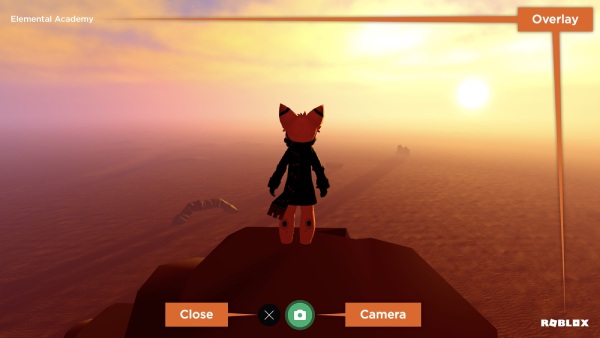
Roblox actually has a built-in camera tool, though it's not as obvious as some other games. It's fantastic for capturing clean shots without any UI elements getting in the way. This method is often preferred for sharing high-quality images of your creations or special in-game events.
Here’s how to use the Roblox in-game camera:
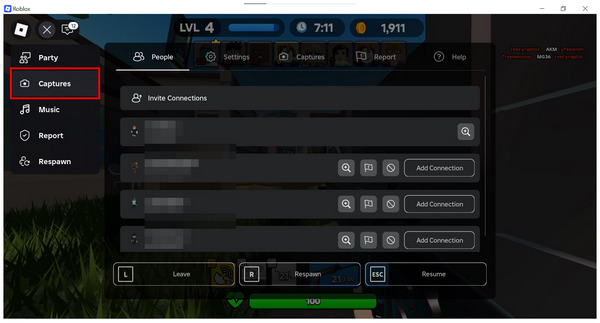
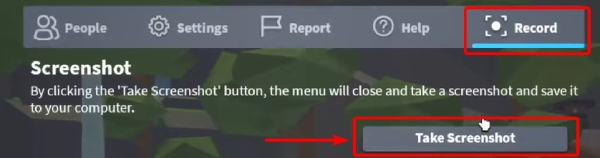
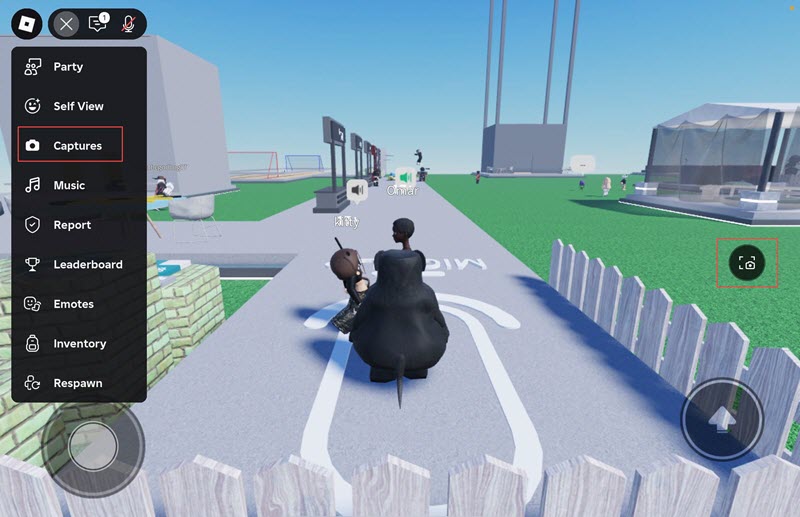
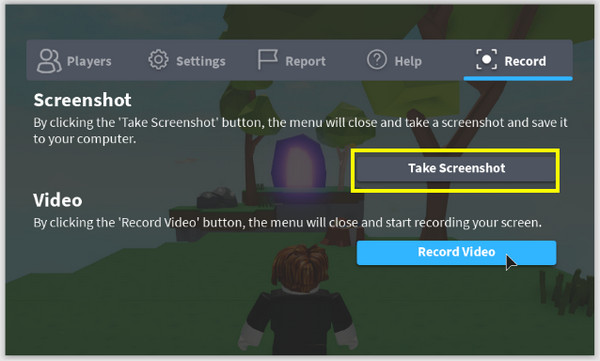
- Step 1: While in a Roblox game, look for the 'Menu' icon. It's usually a small stack of three lines (often called a 'hamburger menu') in the top-left corner of your screen. Click it.
- Step 2: In the menu that appears, you'll see several options. Look for the 'Record' or 'Camera' icon. It often looks like a small video camera or a classic camera.
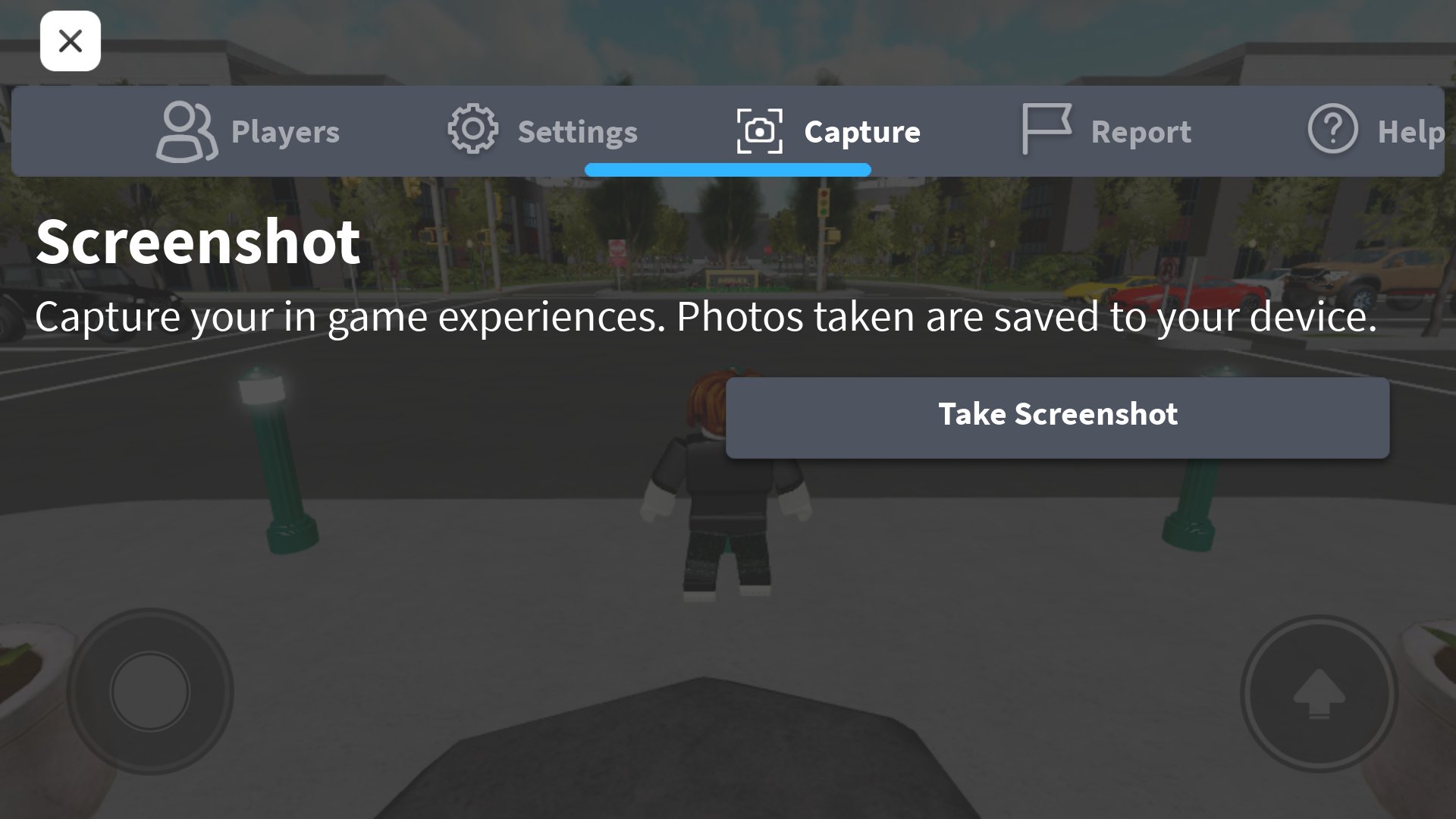
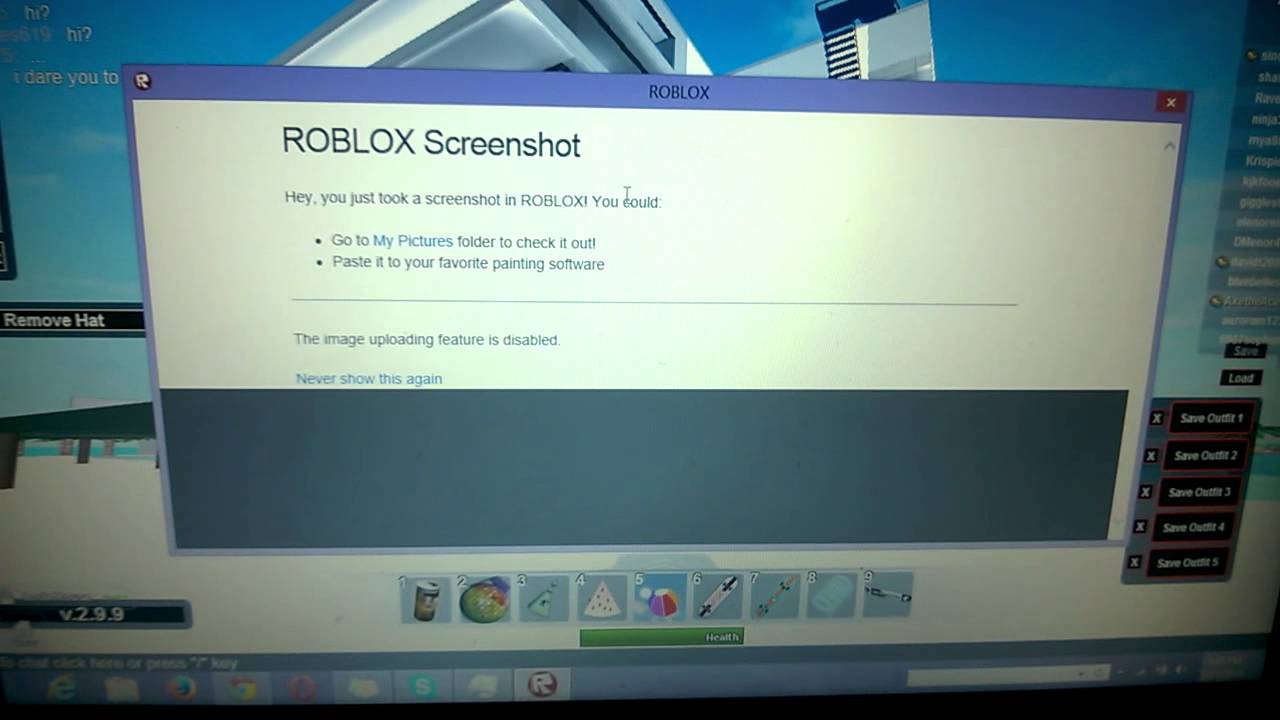
- Step 3: Click on the 'Camera' icon. This will take a screenshot. You usually won't see a confirmation pop-up directly in the game, but the image is saved in the background.
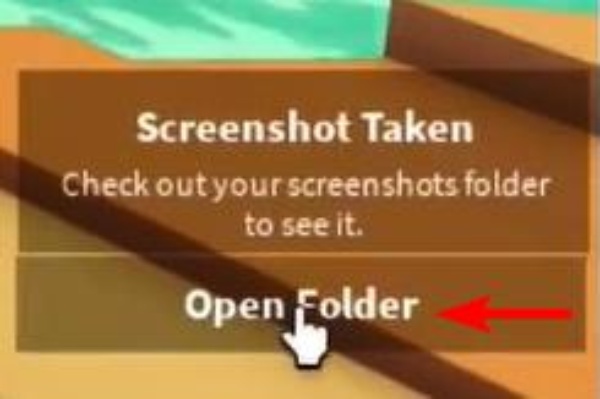
- Step 4: To access your captured screenshots, you'll need to navigate to your Roblox installation folder. On Windows, this is typically `C:\Users\YourUsername\Pictures\Roblox`. You can also right-click the Roblox player shortcut, select 'Open file location', and then navigate to the 'Pictures' folder from there.
This method is great for pure, unadulterated gameplay shots, but remember it won't capture your Roblox client interface or any external windows.
What Are the Easiest PC Keyboard Shortcuts for Roblox Screenshots?
For PC gamers, the operating system itself provides incredibly quick ways to snap screenshots, often faster than navigating an in-game menu. These methods are universal and work not just for Roblox but for any application or desktop view. Mastering these can save you a ton of time, especially when that split-second reaction is crucial for documenting a funny chat message or a bizarre game bug.
Here are the go-to PC keyboard shortcuts:
- Print Screen (PrtScn) Key: Simply press the `PrtScn` key (sometimes labeled 'Print Screen' or 'Prt Sc') on your keyboard. This copies your entire screen to the clipboard. You then need to paste it into an image editor like Paint, Photoshop, or even a Discord chat.
- Alt + Print Screen: If you only want to capture the active window (e.g., just the Roblox game window, not your entire desktop), press `Alt + PrtScn`. This also copies to the clipboard, requiring you to paste it elsewhere.
- Windows Key + Print Screen: This is a fantastic shortcut! Press `Windows Key + PrtScn` simultaneously. Your screen will briefly dim, indicating a screenshot has been taken, and the image is automatically saved as a PNG file in your `Pictures\Screenshots` folder. This is arguably the most efficient method for quick saves.
- Snipping Tool / Snip & Sketch (Windows 10/11): For more control, use the built-in Snipping Tool (search for it in the Start Menu). Or, even faster, press `Windows Key + Shift + S`. This activates the 'Snip & Sketch' tool, allowing you to drag a box around the exact area you want to capture. The screenshot is then copied to your clipboard, and a notification appears, letting you open it for editing or saving. This is perfect for capturing specific UI elements or a smaller portion of the game.
Using these native Windows tools integrates seamlessly into the workflow of busy gamers, allowing for quick captures without interruption.
How Do I Take Screenshots on Roblox Using a Mac?
Mac users also have robust built-in tools for capturing their screen, offering similar flexibility to Windows. These shortcuts are invaluable for any Mac gamer wanting to preserve their Roblox moments or share something quickly.
Mac screenshot shortcuts:
- Command + Shift + 3: This combination captures your entire screen. The screenshot is automatically saved as a PNG file on your desktop.
- Command + Shift + 4: This turns your cursor into a crosshair, allowing you to click and drag to select a specific area of your screen to capture. Once you release the mouse button, the screenshot is saved to your desktop.
- Command + Shift + 4 + Spacebar: After pressing `Command + Shift + 4`, press the `Spacebar`. Your cursor will turn into a camera icon. You can then click on a specific window to capture just that window, neatly trimmed. This is excellent for capturing only your Roblox game window.
All Mac screenshots are saved directly to your desktop by default, making them easy to find and manage.
What's the Best Way to Screenshot Roblox on Mobile Devices?
Given the massive popularity of mobile gaming, especially for Roblox with its excellent cross-play capabilities, knowing how to screenshot on your phone or tablet is essential. Mobile users represent a significant portion of the gaming community, and these methods are universal across almost all apps, including Roblox.
Mobile screenshot methods are typically platform-specific:
- iOS (iPhone/iPad):
- For devices with Face ID (no Home button): Press the `Side button` and the `Volume Up button` at the same time.
- For devices with a Home button: Press the `Home button` and the `Side button` (or `Top button`) at the same time.
A thumbnail of your screenshot will appear in the bottom-left corner of the screen. You can tap it to edit or share, or swipe left to dismiss. It's saved to your Photos app.
- Android:
- Most Android phones: Press the `Power button` and the `Volume Down button` at the same time. Hold them for a second.
- Some older or specific models might have a different combination, or a gesture (like a three-finger swipe down). Check your phone's manual if the standard method doesn't work.
The screenshot typically appears as a notification at the top of your screen, and is saved in your Gallery or Photos app, usually in a 'Screenshots' album.
These mobile methods are quick, intuitive, and perfect for capturing those on-the-go Roblox moments, whether you're commuting or relaxing on the couch.
Where Do Roblox Screenshots Automatically Save on My Computer?
Knowing where your screenshots go after you take them is just as important as knowing how to capture them! It's a common pain point for gamers to lose track of their captured moments. The location varies slightly depending on the method you use.
- Roblox In-Game Camera: As mentioned, these are usually found in `C:\Users\YourUsername\Pictures\Roblox` on Windows. If Roblox is installed in a custom location, look for a 'Pictures' or 'Screenshots' subfolder within the main Roblox directory.
- Windows Key + PrtScn: Screenshots taken with this shortcut are automatically saved to your `Pictures\Screenshots` folder. This is a dedicated folder for all such captures.
- Mac (Command + Shift + 3/4): All screenshots taken with Mac's native shortcuts are saved directly to your desktop, making them immediately accessible.
- Snipping Tool / Snip & Sketch / PrtScn (clipboard): For methods that copy to the clipboard, they aren't saved automatically to a file until you paste them into an image editor (like Paint) and manually save them. Always remember to save if you want to keep these!
Making a habit of checking these locations will ensure you never lose a cherished Roblox memory.
How Can I Improve the Quality of My Roblox Screenshots?
Pixelated or blurry screenshots can be a real buzzkill, especially when you've captured something truly epic. Many gamers, especially those focused on sharing their experiences or even creating content, want their captures to look sharp. Here are some tips to boost your Roblox screenshot quality:
- Increase Graphics Settings: Before taking a screenshot, temporarily boost your Roblox graphics quality. Go to the in-game menu (the hamburger icon) and navigate to 'Settings'. Slide the 'Graphics Quality' bar to its highest setting. Remember to lower it back down if your PC struggles during regular gameplay, but for that one perfect shot, it's worth it.
- Full Screen Mode: Play Roblox in full-screen mode when taking screenshots. This ensures that the game client is rendering at its maximum resolution and that your screenshot tool captures the entire, unscaled image.
- Use Native OS Tools: Windows Key + PrtScn or Mac's Command + Shift + 3/4 often yield higher quality, uncompressed images compared to some third-party capture software that might apply compression by default.
- Avoid Zooming In: If you capture a small portion of the screen using the Snipping Tool, and then try to zoom in on it, it will naturally become pixelated. Try to capture the area at its intended display size.
- High-Resolution Monitor: While not a quick fix, a higher-resolution monitor (like 1440p or 4K) will naturally produce higher-resolution screenshots. If you're on a budget but looking for an upgrade, monitor resolution is a key factor for crisp captures.
By taking these steps, your Roblox screenshots will look professional and ready for sharing across any platform.
Can I Record Video Clips Instead of Just Taking Screenshots in Roblox?
Absolutely! Sometimes a still image just doesn't do justice to a dynamic moment, like an intense PvP battle or a complex building animation. Roblox, like many modern gaming platforms, understands the need for video capture. Social gaming trends show that short video clips are incredibly popular for sharing on platforms like TikTok, YouTube Shorts, and Discord.
- Roblox's Built-in Recorder: Similar to the camera tool, the Roblox in-game menu (hamburger icon) also has a 'Record' option. Clicking this will start recording your gameplay. When you're done, go back to the menu and click 'Stop Recording'. The video files are typically saved in the same Roblox Pictures folder, often in an 'Videos' or 'Recordings' subfolder, usually in .mp4 format.
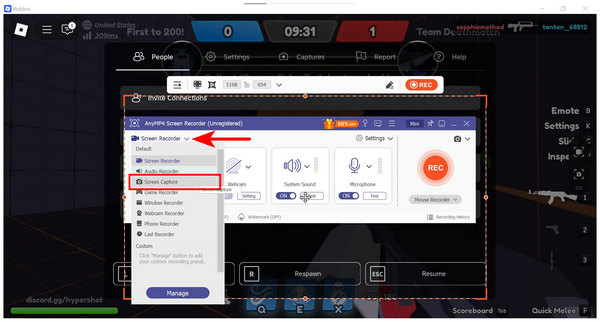
- Third-Party Software: For more advanced recording features (like custom hotkeys, overlay options, and higher quality/compression settings), many PC gamers use software like OBS Studio (free and open-source), NVIDIA GeForce Experience (for NVIDIA GPU users), or AMD Radeon Software (for AMD GPU users). These tools offer robust control over your video capture experience.
- Mobile Screen Recorders: Both iOS and Android have built-in screen recording features.
- iOS: Add 'Screen Recording' to your Control Center (Settings > Control Center > Customize Controls). Then swipe down from the top-right (Face ID) or up from the bottom (Home button) to access Control Center and tap the record button.
- Android: Most Android phones have a 'Screen Record' quick setting in the notification shade. Just pull down twice from the top of your screen to find it.
Recording video allows you to capture the full context and excitement of your Roblox adventures, perfect for detailed bug reports or creating entertaining content for your friends and online communities.
Are There Any Common Issues When Taking Roblox Screenshots and How Do I Fix Them?
Even with the best tools, you might run into a snag or two. It's frustrating when you try to capture a moment and it doesn't work! Here are some common problems and their solutions:
- Screenshots Appear Black: Some games or applications, especially those using DirectX or certain full-screen modes, can interfere with standard screenshot tools. Try using the Roblox in-game camera first. If that doesn't work, ensure your graphics drivers are up to date. Sometimes, using a dedicated recording/streaming software like OBS (even just for screenshots) can bypass this by capturing the game window more directly.
- Screenshots Not Saving: Double-check your save locations. Permissions issues can sometimes prevent files from being written. Try running Roblox as an administrator (right-click the shortcut, 'Run as administrator'). On mobile, ensure Roblox has permission to access your device's photos/storage.
- Low Quality/Blurry Images: Refer back to the section on improving quality: increase in-game graphics, use full-screen, and ensure you're not capturing a small window that's later stretched.
- UI Elements in Screenshots: If you want a clean shot without the Roblox UI (chat, player list, etc.), the in-game camera is usually your best bet. Otherwise, many third-party tools (like NVIDIA GeForce Experience's Ansel feature in supported games) offer more control over HUD removal, though Roblox integration varies.
- Hotkeys Not Working: Check for conflicts with other running applications. Gaming overlays (Discord, Steam, Xbox Game Bar) or other software might be using the same hotkeys. Temporarily disable them or reassign hotkeys if possible.
Troubleshooting is part of the gaming experience, but armed with these tips, you'll overcome most screenshot hurdles in Roblox.
As busy adult gamers, our time in Roblox is often precious. We want to maximize the fun, share our triumphs, and easily document our experiences. Knowing how to take screenshots in Roblox efficiently, whether for a quick laugh with friends on Discord or to capture a meaningful in-game achievement, empowers you to do just that. We've explored everything from Roblox's native camera to powerful operating system tools and mobile solutions, ensuring you have a method for every situation. Remember, the goal is effortless capture so you can focus on enjoying the game, not fighting with your software. What's your biggest gaming challenge when it comes to capturing moments? Comment below and let's help each other out!
FAQ Section
Q: Can I take screenshots on Roblox without any third-party software?
A: Yes, absolutely! You can use Roblox's built-in camera tool accessed via the in-game menu, or rely on your operating system's native screenshot tools like Print Screen (Windows), Windows Key + PrtScn (Windows), or Command + Shift + 3/4 (Mac).
Q: What's the fastest way to save a Roblox screenshot to a file on Windows?
A: The fastest method on Windows is pressing `Windows Key + PrtScn`. This automatically captures your entire screen and saves it as a PNG file in your `Pictures\Screenshots` folder without needing to paste it into an editor.
Q: How do I share my Roblox screenshots with friends on Discord?
A: Once you've taken a screenshot, locate the image file (e.g., in your Pictures\Screenshots folder) or if it's on your clipboard, open Discord, navigate to the desired chat, and either drag-and-drop the file or paste (`Ctrl+V`) the image directly into the message box.
Q: Is there a way to take a screenshot of just the Roblox game window, without the taskbar or other desktop elements?
A: On Windows, use `Alt + PrtScn` to copy only the active window to your clipboard, or `Windows Key + Shift + S` to use Snip & Sketch and select the window. On Mac, use `Command + Shift + 4`, then press `Spacebar` and click on the Roblox window.
Q: Do screenshots impact game performance in Roblox?
A: Taking a single screenshot using native tools has a negligible impact on game performance. Temporarily increasing your graphics settings for a higher quality screenshot might cause a brief dip, but it's typically minor and short-lived.
Q: Can I customize where my Roblox in-game screenshots are saved?
A: Roblox's built-in camera tool usually saves to a default location (e.g., `C:\Users\YourUsername\Pictures\Roblox`). While you can't easily change this within Roblox itself, you can always move the saved files to your preferred folder afterward. OS-level screenshot tools typically save to system-defined locations like `Pictures\Screenshots`.
Learn multiple methods to take Roblox screenshots including in-game tools, operating system shortcuts, and mobile device functions. Discover how to find your saved screenshots quickly. Optimize your screenshot quality and troubleshoot common issues. Understand the best ways to share your captured Roblox moments with friends and the community.
35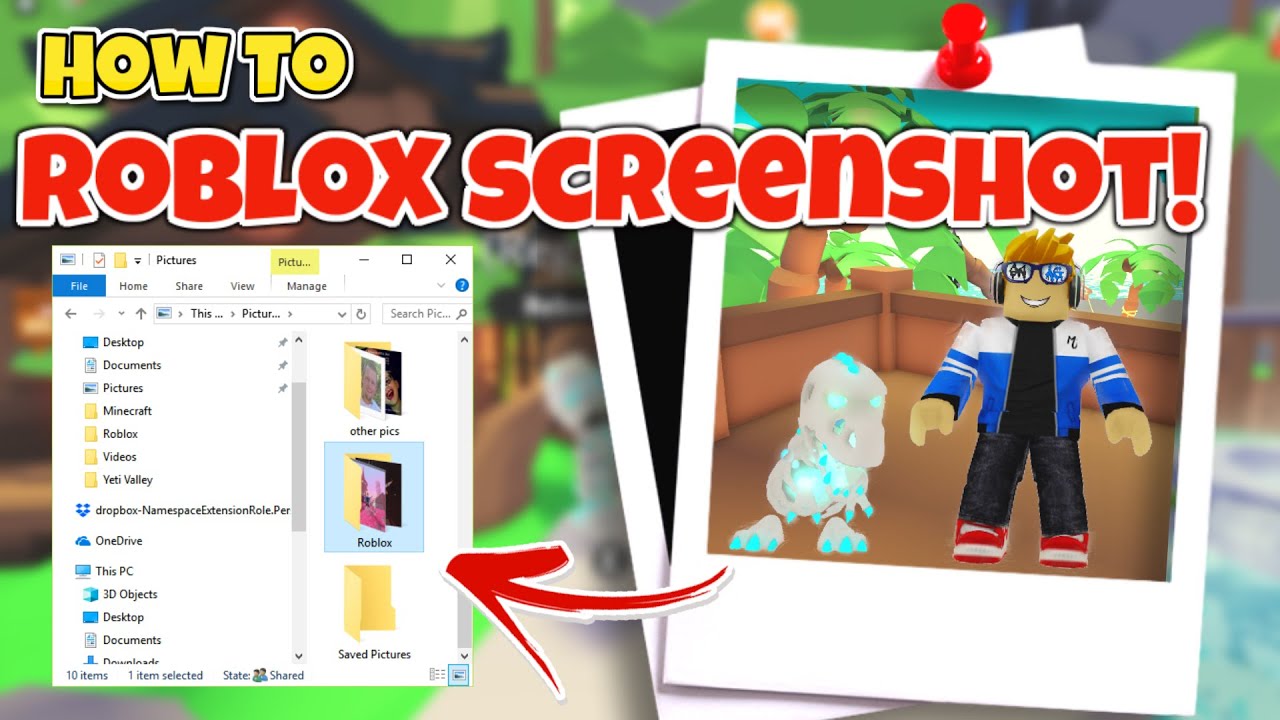



Want To Disable Roblox Captures Here S How . Want To Disable Roblox Captures Here S How . How To Take A Screenshot In Roblox On All Devices Roblox Captures Option . How To Take A Screenshot In Roblox Studio High Quality YouTube . How To Take A Screenshot In Roblox YouTube



How To Take A Screenshot In Roblox On All Devices Anymp4 Screen Recorder Screen Capture . How To Take A Screenshot In Roblox Studio 2025 High Quality YouTube . How To Take A Screenshot On Pc Roblox Guide Glimpse YouTube . Find Your Roblox Memories A Capture Guide Large. Roblox Memories Your Guide To Taking Screenshots Image 4965b55f44

Roblox Screenshot Capture Moments In Roblox On Any Device Roblox Record And Take Screenshot Button . Roblox Memories Your Guide To Taking Screenshots . Roblox Memories Your Guide To Taking Screenshots . How To Take Screenshots In Roblox YouTube . Roblox Memories Your Guide To Taking Screenshots


Can T Screenshot Using Roblox Screenshot Platform Usage Support . Roblox Memories Your Guide To Taking Screenshots . Find Your Roblox Memories A Capture Guide . Take Roblox Screenshots On Windows Mac IPhone Andorid Open Folder On Roblox . How To Take A Screenshot On Roblox All Device Guidance



Can T Screenshot Using Roblox Screenshot Platform Usage Support . Roblox Memories Your Guide To Taking Screenshots Roblox Screenshot Folder . Tips For Capturing High Quality Screenshots And Videos In Studio . Want To Disable Roblox Captures Here S How . Roblox Memories Your Guide To Taking Screenshots Roblox Screenshots 8



Take Roblox Screenshots With 5 Effective Ways All Devices Roblox Official Screenshot . Want To Disable Roblox Captures Here S How . Want To Disable Roblox Captures Here S How . Roblox Memories Your Guide To Taking Screenshots . How To Message On Roblox 2026 A Quick Guide


6 Ways To Screenshot Roblox On PC Mac IPhone Android Roblox Built In Screenshot Capture . How To Download Roblox Images In 2026 A Quick Guide . Roblox Memories Your Guide To Taking Screenshots Roblox 2025 Ultimate Guide.webp. How To Take A Screenshot In Roblox On All Devices Roblox Screenshot . How To Take A Screenshot On Roblox All Device Guidance